 Patchman
The toolkit / Repaint RepaintBY PATCHMAN
RepaintBY PATCHMANChange the part that changes the picture.
Build a precise selection before changing an object’s colour, position or size. Repair exposed areas, compare the result and keep masks, objects and history in the same project.
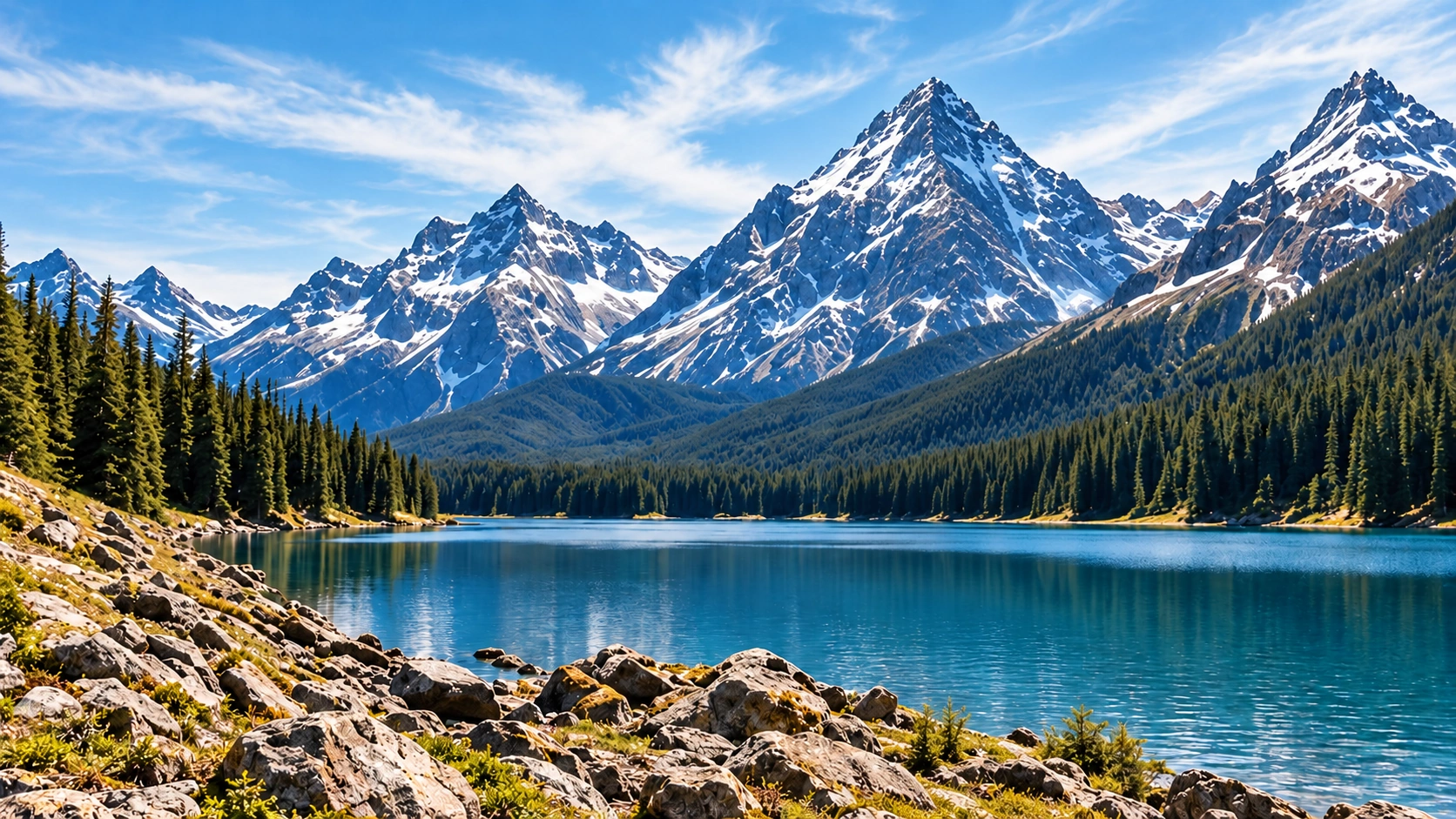
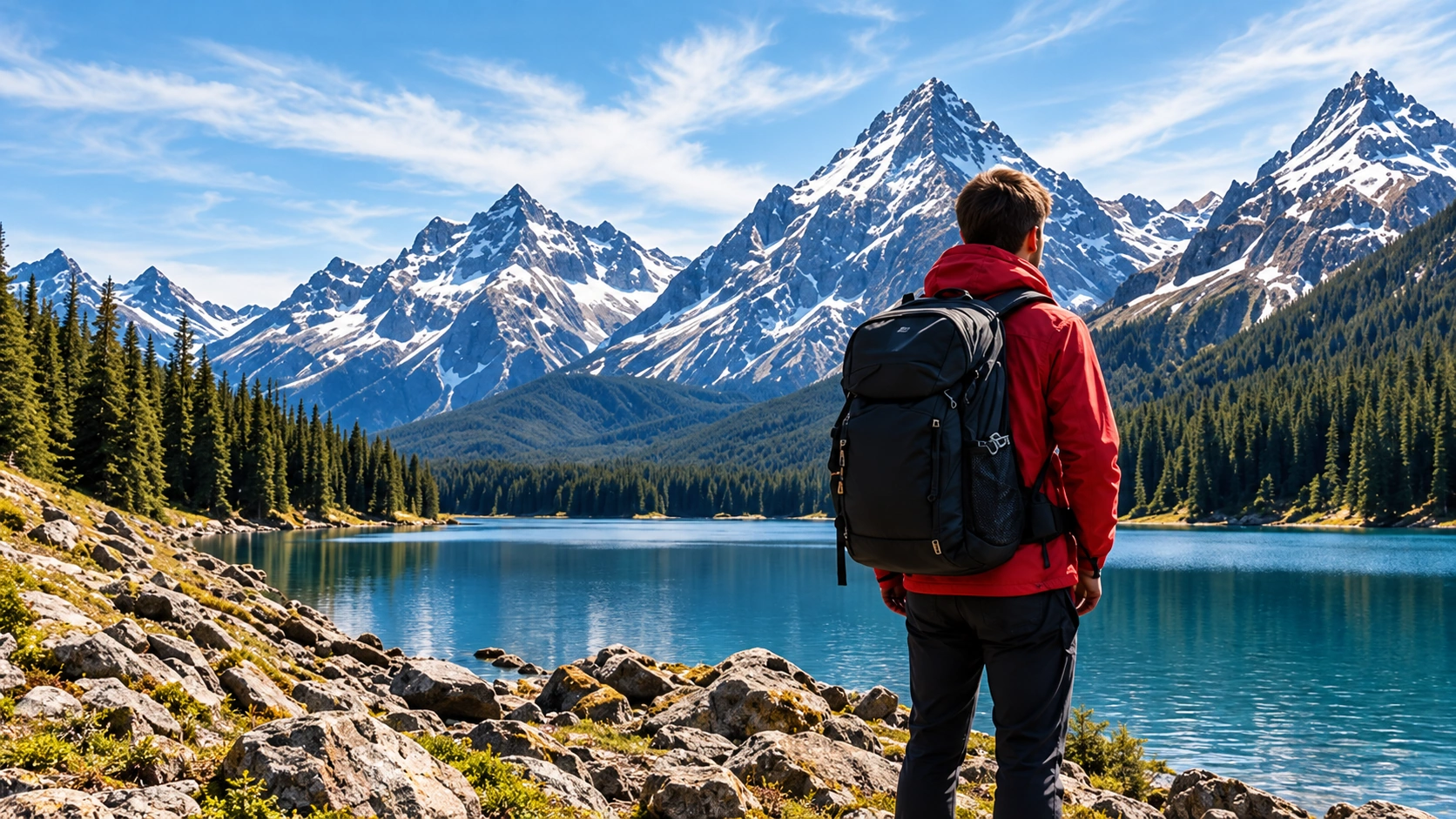 BeforeAfter
YOU BRING
A photograph and an editing goal
YOU MAKE
A recoloured, rearranged or repaired image
YOU CONTROL
Selections, object transforms and repair
MAKE ROOM FOR THE GOOD PART.
Change the part that matters.
For focused image edits where the boundary of a selection matters as much as the change.
Recolour, blend, move, rotate and duplicate selected objects.
Repair small gaps with Telea or Navier–Stokes methods.
- Select the region and refine its boundary.
- Recolour or rearrange the active object.
- Repair gaps, compare and export the image.
Change the detail that changes the picture
Repaint is a workspace for selecting and changing parts of an image. Refine a product’s colour, move an element within a composition, duplicate an object or repair a small distraction. Selection, adjustment and comparison stay connected so you can see both the local edit and its effect on the whole picture.
Start with a clear aim: recolour the bag, move the foreground object or clean a narrow line. Different aims need different selection boundaries. A precise mask is often more valuable than a stronger adjustment, especially beside hair, transparent material or a detailed background.
Prepare the source and define the boundary
Open a project and add the image you have permission to edit. Keep an independent original. Source uploads support files up to 24 MiB; the working source is bounded to 4096 pixels per edge and 4,194,304 pixels in total. Processing bounds help the browser stay responsive, so check the working dimensions before planning a very large print output.
Choose foreground, background or an object region. Start with a broad selection and refine it at a useful zoom. Avoid judging a mask only by its coloured overlay: switch to the edited image and inspect the edge against its actual surroundings.
Select, recolour and arrange without losing context
- Select uses connected colour and edge regions, foreground/background choices, brush and erase, rectangles, freehand lasso and positive or negative refinement points.
- Recolor controls the selected region’s colour, opacity and blending alongside hue, saturation and brightness. A subtle adjustment can preserve more of the original shading.
- Arrange moves, rotates, scales, duplicates, hides or deletes an editable region. Exposed areas can use Telea, Navier–Stokes or transparency, with manual repair retained.
- Compare switches between original, current and split views. The bounded undo history helps revisit recent decisions while the Projects tab preserves named work.
Example: make two coordinated product colourways
- Select the product surface while excluding its label, hardware and strong reflections. Refine the mask with erase and local points.
- Change hue or apply a blended colour, checking that shadows and material detail still read naturally. Compare at full view and at the edge.
- Export one reviewed version, then return to the project for the second colourway. Name the versions clearly so the recipient can distinguish them.
- Upload the checked exports to Dowe for a delivery board. Keep the editable source and mask project separate from files intended for download.
This workflow changes pixels in an existing photograph. It does not validate a physical material colour or replace a colour-managed product sample.
Review repair, save and export deliberately
Deterministic repair works best when the surrounding pixels provide useful structure. Telea and Navier–Stokes can fill a small gap, but a large missing subject or complex repeated pattern may need manual work or a different source. Inspect the repaired region at the delivery size rather than accepting a blurred result because the selection disappeared.
Repaint keeps source assets, selections, objects, adjustments and workspace state in the owned project. Recent history contains up to 24 bounded checkpoints. Save confirmation and revision checks protect against silently overwriting another tab. Export PNG, JPEG or WebP; JPEG flattens transparency onto an ivory matte, so choose PNG or WebP when transparent pixels matter.
Device processing, private persistence and local AI
Deterministic image processing runs on your device, including a worker path where supported. Source images are uploaded to private project storage for persistence. Images, masks and prompts are not sent to a remote AI generation service by this editing workflow.
The manual selection, colour, transform and repair tools consume no paid AI credits. Optional heavier local AI is labelled Coming soon and remains disabled until it qualifies within the 2 GB working-memory ceiling. You can complete the deterministic workflow without downloading a model.
Questions about selection and repair
Should I move an object before refining its selection?
Refine the boundary first. A rough edge becomes more visible after movement or recolouring, and a selected background strip can move with the object unintentionally.
Will removing a large object reconstruct everything behind it?
No deterministic repair can know a hidden scene. Review the available fill result, use manual repair and choose a different composition when the surrounding pixels cannot support a believable finish.
Why does a transparent export look different in JPEG?
JPEG has no transparency. Repaint applies an ivory matte; choose PNG or WebP and inspect the exported file when transparent delivery is required.
Repaint walkthrough · Brush selection · Repair methods · Combine your photo tools