 Patchman
The toolkit / Flux FluxBY PATCHMAN
FluxBY PATCHMANBring your downloads into order.
Start with a link, a batch or a prepared download manifest. Keep transfer progress and individual outcomes visible as you filter the queue, handle failures and collect completed files.
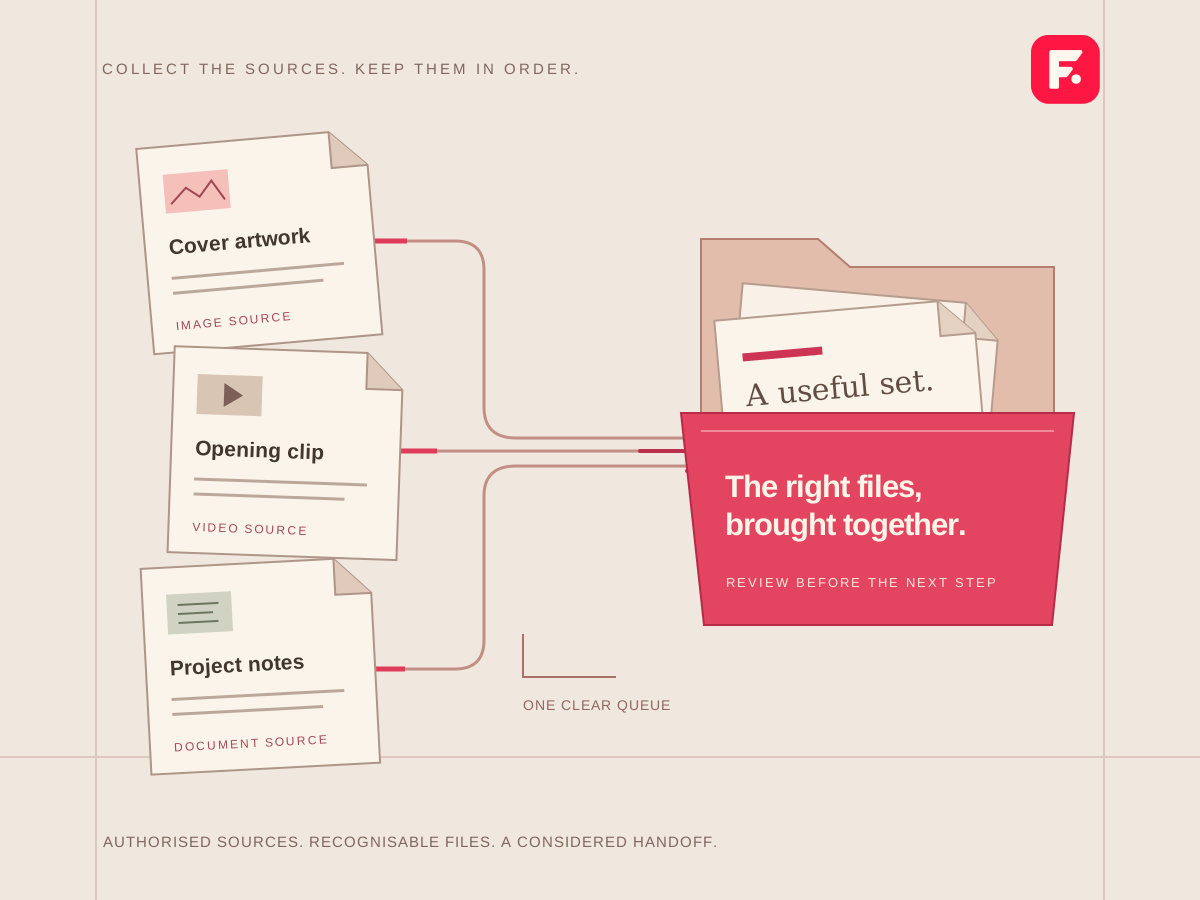
YOU BRING
Links, a batch or a download manifest
YOU MAKE
A clear queue of collected files
YOU CONTROL
Progress, pause, resume and retry
MAKE ROOM FOR THE GOOD PART.
Know what is moving, and what needs attention.
For collecting project assets without losing track of transfer progress or individual failures.
Import and export .flpm download manifests.
Filter transfers and pause, resume or retry individual items.
- Add a link, batch or download manifest.
- Review the queue and monitor each transfer.
- Resolve failed items and collect completed files.
Bring the collection into a clear queue
Flux is a workspace for collecting authorised files and following each transfer to a useful result. Start with a direct link, a batch or a prepared download manifest, then keep queued, active, paused, failed and completed items distinct. A clear queue makes missing inputs easier to find before they disrupt another task.
Use Flux when a project depends on several source files or when a large transfer needs visible progress and recovery. Keep the source and usage rights alongside the task. Download management does not grant access to material that the origin restricts or that you are not permitted to copy.
Choose supported links and meaningful names
Direct downloads accept public HTTP and HTTPS file URLs. Supported cloud transfers include HTTP, HTTPS and plain FTP; FTP is unencrypted, so prefer an authorised HTTPS source when available. Unsupported FTPS, SFTP, SSH, torrent and premium-unlocking tasks are rejected rather than represented as successful transfers.
A page address is not always a downloadable file address. Check the origin, any access requirements and the expected output before queuing many links. Avoid posting private credentials or signed source URLs into public messages. Give each batch a useful purpose so it remains understandable when you revisit it.
Follow individual transfers, not just the total
- Submit a link or batch once and inspect its accepted count and individual errors. A later list-refresh error does not mean the first submission never committed.
- Filter the queue and pause, resume or retry the item that needs attention. Segment details appear only when actual segment records exist.
- Range acceleration first checks that the source really honours byte ranges. If the source does not, Flux uses a complete stream rather than assuming that extra connections guarantee a faster or correct result.
- Use .flpm manifests to carry a prepared download list. Review imported sources before starting work; importing a list does not verify rights or make every source available.
Example: gather the inputs for a client document pack
- Review the authorised links supplied for the task and identify the expected file from each source.
- Add the batch, then inspect which links were accepted and which need correction. Resolve an access error at the source rather than repeatedly retrying it.
- Wait for completion and inspect representative files. Compare expected size and contents where available before importing documents into FOLD.
- Keep a simple record of which source belongs to each deliverable. A completed source transfer is an input, not proof that the final merged document is correct.
Recover progress and verify the completed file
Flux keeps owned queue records and the private data needed by its download engine. Restored range work is checked before assembly. A completed range download is published after its parts and assembled file are flushed, known byte counts agree and a SHA-256 digest is computed.
Open the actual output and confirm that it is the expected file. A webpage saved instead of a document can still contain bytes, and a familiar filename is not a content check. Signed sharing is a separate explicit action; keep its expiry and recipient needs in view. If a transfer is uncertain or failed, preserve the recorded reference and inspect the message before starting another copy.
Private storage, scheduling and clear measurements
Download records and private files belong to the verified Account owner. Shared delivery links have their own expiry rather than treating a bare download identifier as public authority. Scheduled UTC start times survive restarts, and due work rechecks current Account access before starting.
Displayed speed and activity describe measured or recorded transfer state. An idle queue does not imply an active stream; completed cloud bytes are not a promise of remaining storage capacity or network bandwidth. This deterministic transfer workflow does not use a paid AI generation model.
Questions about links and transfer behaviour
Do more connections always improve a download?
No. The source must support the requested ranges and may impose its own limits. Flux checks range behaviour and can use a complete stream when segmentation is unsuitable.
Does Flux unlock a premium host or download a torrent?
Those operations are not implemented. Use an authorised supported file URL; a queue manager cannot substitute for a missing origin permission or unsupported protocol.
Should I resubmit a batch if its list failed to refresh?
Check the accepted count and recorded items first. The submission may already have succeeded even when the following display request failed.
Flux walkthrough · Organise project downloads · Direct and cloud downloads · Build a clear handover