 Patchman
The toolkit / Outpaint OutpaintBY PATCHMAN
OutpaintBY PATCHMANMake room for the composition.
Give a portrait breathing room or reshape a photograph for a wider layout. Set each edge independently, choose a fill treatment and refine the joins before exporting the larger composition.
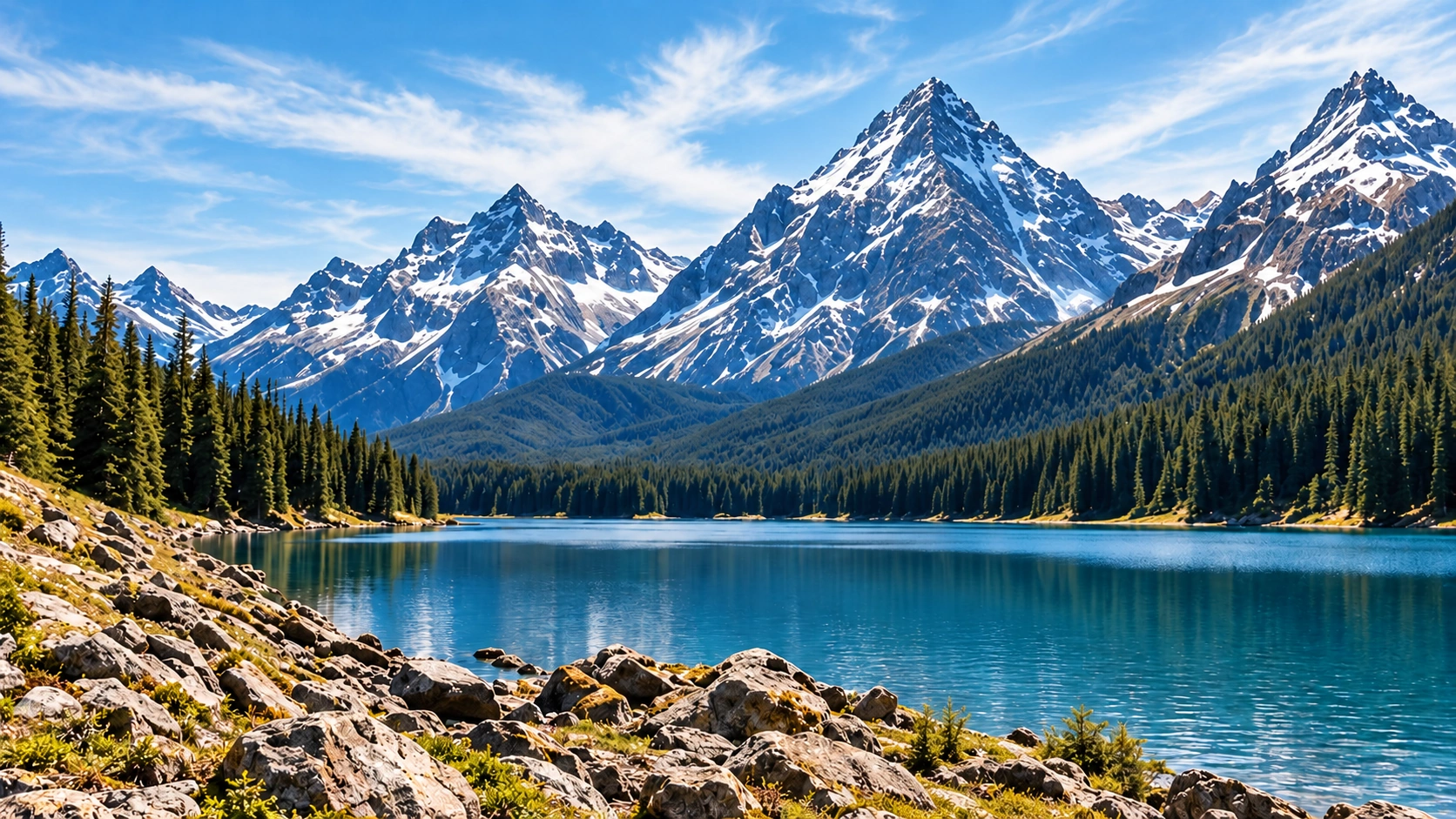 Room to extend
YOU BRING
A source image and a new format
YOU MAKE
A larger, finished composition
YOU CONTROL
Four edges, fill treatment and seams
MAKE ROOM FOR THE GOOD PART.
Make room without losing the composition.
For turning an existing image into a wider composition, a new crop or a layout with breathing room.
Fill with continuation, reflection, stretch, solid colour or transparency.
Blend seams, adjust the finish and compare against the source.
- Choose your canvas bounds.
- Fill the added space and refine the seams.
- Compare the edges and export your composition.
Give the composition room to breathe
Outpaint expands the space around an existing image. Use it when a portrait needs room for a headline, artwork must fit a wider video frame or a photograph needs a different aspect ratio. Choose the new composition first, then decide how the added area should look.
The original image remains the reference point. Extending a canvas does not reveal a hidden scene outside the photograph. Continuation, reflection, stretch, solid colour and transparency are different treatments with different visual consequences; compare them against the destination rather than treating one mode as universally best.
Start with the destination size and a good source
Create a named project, add your authorised source and decide where text or other design elements will sit. Adjust left, top, right and bottom independently, or use an aspect ratio as a starting point. A portrait cover prepared for a landscape music visual may need much more room at the sides than above the subject.
Source files support up to 24 MiB. Working sources are bounded to 4096 pixels per edge and 4,194,304 pixels overall; extended output is bounded to 16,777,216 pixels. Inspect those working dimensions before assuming that a large canvas is suitable for a particular print requirement.
Choose a fill for the kind of image you have
- Continuation extends information from the source edge. It can suit an open backdrop, but repeated texture and a strong horizon need close review.
- Reflection mirrors edge content. Inspect recognisable shapes, faces and text so the mirrored repetition does not distract from the original subject.
- Edge stretch and seam controls can create a softened visual field around a central image. Check for obvious elongation near detailed edges.
- Solid colour and transparency give deliberate layout space without implying reconstructed scenery. Finish controls refine colour, texture and the joins; edge cropping removes unwanted added space.
Example: turn a cover portrait into a video composition
- Choose the target aspect ratio and extend the sides while keeping the subject’s face inside the intended safe area.
- Compare a restrained continuation with a solid or blended treatment. Look for repeated silhouettes and lines at the original boundary.
- Refine the seam and colour so the added area supports the subject. Reserve a quieter region for the track title or lyric text.
- Export the reviewed artwork and import it into Visualizer. Check title placement and motion there; the exported image is the handoff between the two apps.
Keep the bounds, compare the result, export a real file
The Extend, Fill, Finish, Compare and Projects tabs preserve the canvas while you change tools. Use original, current or split comparison to locate the source boundary and inspect the composition as a whole. Bounded undo history makes recent decisions reversible; a reset should be a deliberate choice, not the first recovery action.
Saved projects restore the source, bounds, fill choices, seam and finish settings, history and view preferences. Wait for save confirmation and resolve a revision conflict before overwriting another tab’s work. Export PNG, JPEG or WebP and open the actual downloaded file. JPEG applies an ivory matte where transparent pixels would otherwise remain.
Finish locally, save privately and understand AI availability
The current deterministic extension tools run on your device and use no paid AI dependency. Source images are uploaded to private project storage so the workspace can be restored. No source image, mask or prompt is sent to a remote generative service by this workflow.
Optional heavyweight local generative extension remains disabled as Coming soon until it meets the 2 GB working-memory ceiling. The existing fill modes, comparison, manual finishing and exports remain available independently; an unsupported device or cancelled optional feature does not remove those tools.
Questions about extending images
Which mode should I use for a recognisable face near an edge?
Avoid an unreviewed reflection or stretch that duplicates or elongates the face. A solid field, transparent area or different crop can be more suitable than trying to continue detailed subject matter.
Does changing the aspect ratio crop my original automatically?
Review the independent canvas bounds and any finishing crop. The ratio is a composition choice; compare the full original so you know what is retained and what has been added.
Can another Patchman app edit the Outpaint history?
Export the image for the next app and retain the Outpaint project for its editable bounds and fill settings. The flattened export is the handoff, not shared editing history.
Outpaint walkthrough · Canvas and fill guides · Portrait delivery workflow