 Patchman
Your first useful result
Start with one clear outcome: combine an application pack, rotate a scan or convert a document for sharing. Fold keeps focused tools and projects in one workspace. This guide explains the preparation, review and delivery steps behind its in-app walkthrough.
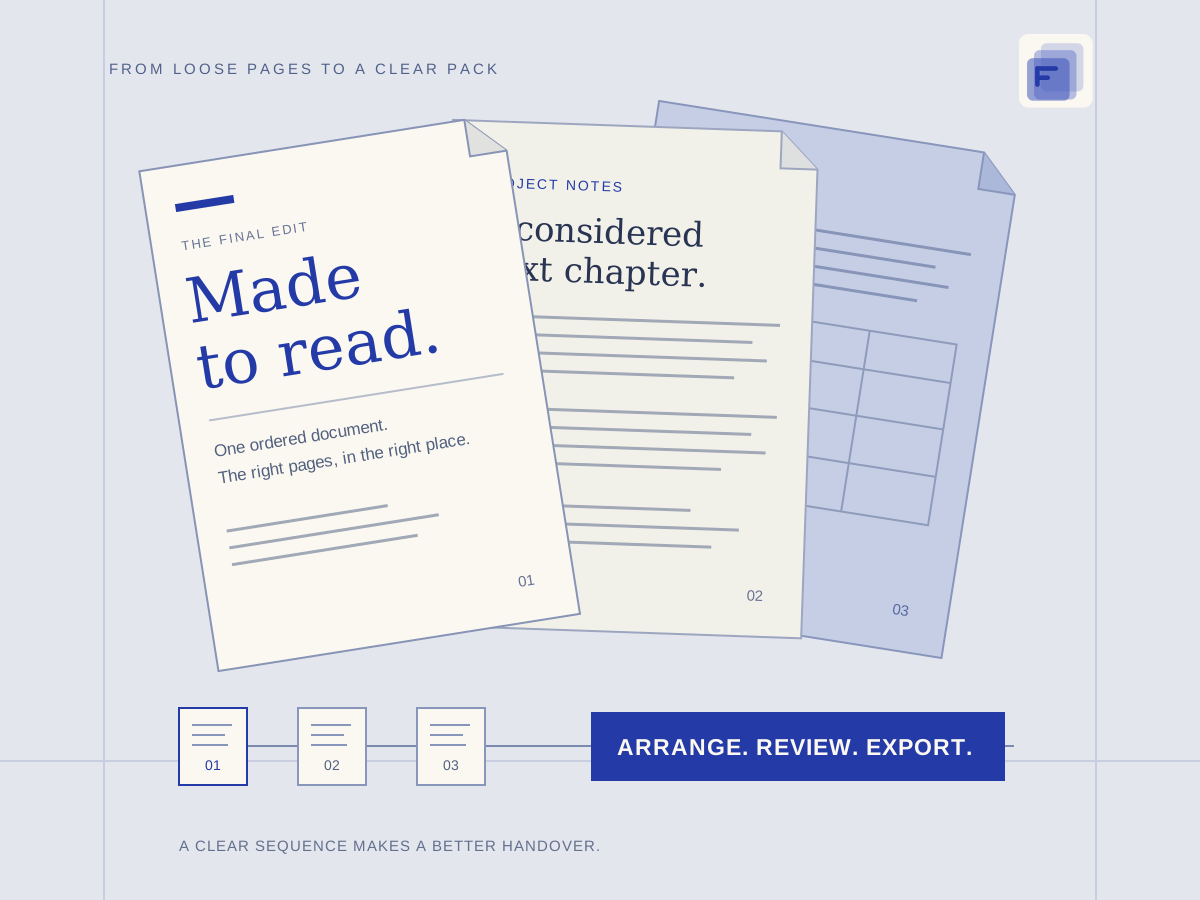
Choose the document outcome first
For a merged pack, list source documents and the intended page sequence. For an editable result, inspect whether the PDF contains selectable text or scanned images. Keep originals and create a separate delivery copy. PDF-to-Word and images-to-PDF solve different problems; neither a filename nor visible words prove that a scan contains recognised text.
Create a named file workspace
Use Projects in the header or the Projects tab in the tool shelf. Name the workspace for its task and confirm it is active before adding sources. Saving preserves files and working choices for a return visit. The downloaded result remains a separate delivery file that needs review before you submit it to another person or service.
Choose a shortcut or open All tools
The main shortcuts keep common operations near the work. All tools opens the wider set, including conversion, splitting, rotation and image-to-PDF tasks. Read the selected tool's inputs and settings. Switching tools changes the operation; check the active source rather than assuming an earlier tool already exported every change.
Add files and inspect page order
Drop files into the active tool or use its chooser. For a merge, inspect sequence and transitions. For page organisation, identify the affected page before rotating, duplicating or removing it. A simple first pack might contain a cover letter, form and evidence. Count the expected pages and inspect the opening page of each source after arranging.
Understand conversion and editing boundaries
Word conversion can involve server processing and change fonts, pagination or layout. A conversion is not a promise of perfect reconstruction or OCR for scans. Whiteout conceals visually, while secure redaction serves a different purpose. A drawn signature is not automatically certificate-backed. Choose the feature for the assurance required, not merely for how its output looks.
Export, reopen and correct the result
Review any displayed paid-action cost, run the selected operation and wait for its actual result. Reopen the download in a separate viewer. Check page count, orientation, text and image clarity, including the final page. If the result is wrong, return to the saved project and original sources. Avoid repeatedly compressing an already degraded copy.
Common questions
Does saving a project submit an application?
No. Saving preserves the workspace. You choose where to send its reviewed export.
Why can converted Word text look different?
PDF describes page layout, not necessarily editable paragraphs and tables. Compare the converted file with the original.
Continue with Fold
In the app, Help can replay its guided walkthrough while this written reference stays available separately. Review the Fold product page for the wider workflow, or open Fold to begin.
For identity and balance questions, read Patchman Account help. If a problem remains, contact support@patchman.io with the app name, a safe reference and its support code.