 Patchman
Your first useful result
A useful first portrait edit is a controlled change you can explain and compare. Choose one photograph and one intended adjustment. Figur keeps the project controls, canvas and shaping panel within reach while you judge the complete picture rather than making every slider move.
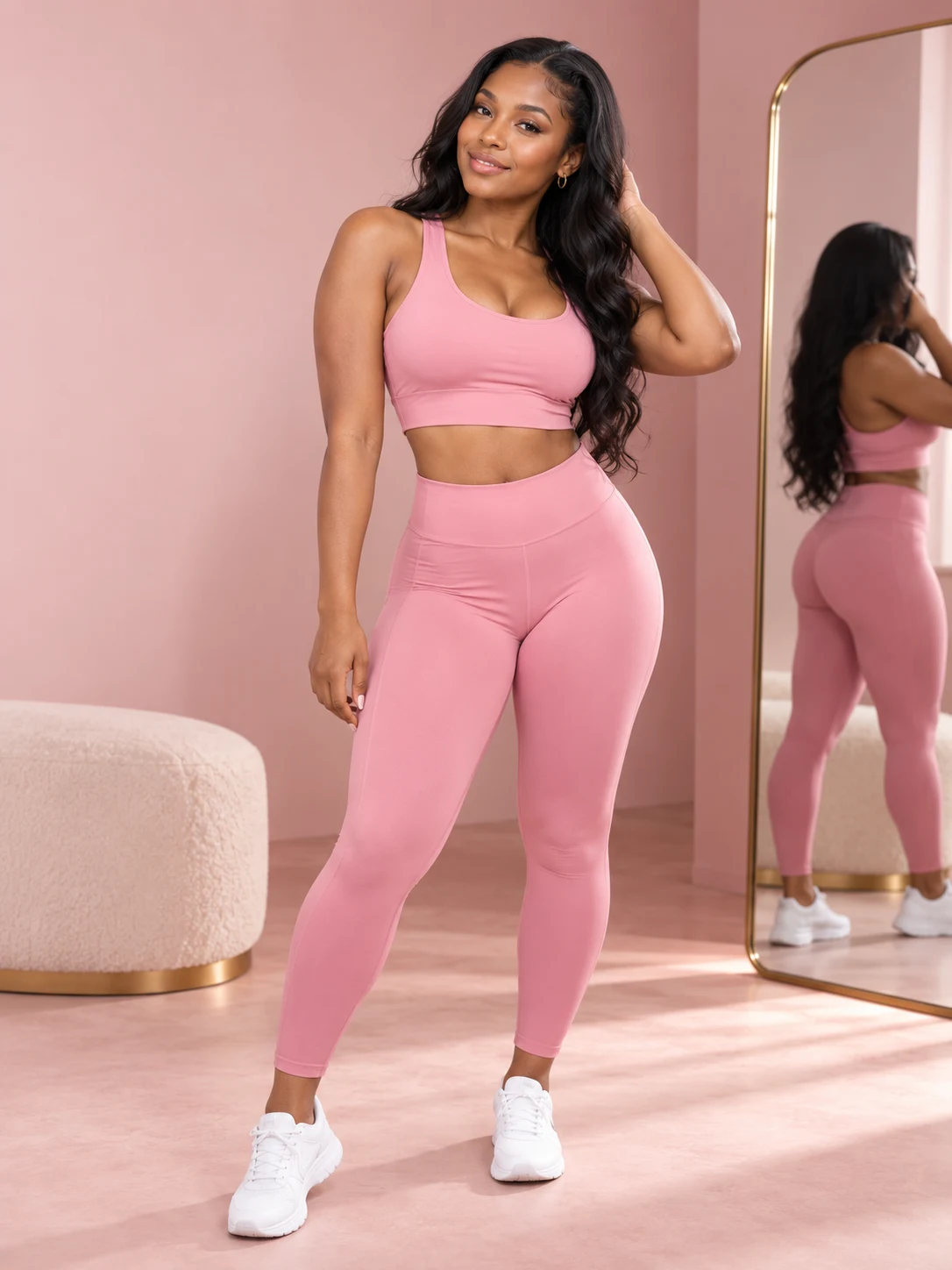
Begin with a clear photograph
Choose an authorised JPG, PNG or WEBP with a clear subject. An uncluttered background and visible silhouette are easier to review than overlapping people or hidden contours. Keep the original separately and agree on the intended result with the person shown. Possessing a photograph does not automatically grant permission to publish a reshaped portrait.
Create a named portrait session
Use Projects in the header to create a project or reopen an owned session. The Projects tab in the editing panel opens the same chooser. Name the session for the photograph or purpose, then confirm it is active before importing another image. Similar thumbnails should not decide which portrait receives the next adjustment.
Load the photo and inspect analysis
Use Open or drop the image onto the centre canvas. Wait for loading and analysis to finish. The canvas keeps zoom, detection overlays and comparison interactive. If the estimated subject region is unsuitable, inspect the available detection or manual controls before applying a stronger adjustment to compensate for a poor starting selection.
Change one region at a time
Start at neutral and choose the relevant waist, hips, bust or curve control. Make a small adjustment, inspect it and compare before changing another region. Manual shaping points provide a deliberate alternative when the automatic estimate is unsuitable. Overlays help explain the affected area; they are not a guarantee of correct subject detection.
Judge nearby details as well as the subject
Compare at the intended viewing size, then zoom into clothing seams, hands and straight background lines. A waist adjustment that bends a doorframe or shifts an elbow needs revision even if the slider value looks modest. Reset or undo the unsuitable change rather than hiding it behind a stronger adjustment elsewhere.
Save the session and inspect the download
Confirm the project saving state, then use Download after reviewing the original and edited result. Open the exported file outside the editor and check it at a useful scale. Workspace zoom changes inspection, not source detail. If controls appear ineffective, confirm loading, the active project and selected region before retrying from a neutral value.
Common questions
Should I move every shaping control?
No. Use the controls relevant to the agreed edit. A small coherent set of changes is easier to judge and reverse.
Can I continue later?
Reopen the named project through Projects and check its source and settings before making another version.
Continue with Figur
In the app, Help can replay its guided walkthrough while this written reference stays available separately. Review the Figur product page for the wider workflow, or open Figur to begin.
Compare a portrait with its original
Work with manual shaping points
For identity and balance questions, read Patchman Account help. If a problem remains, contact support@patchman.io with the app name, a safe reference and its support code.